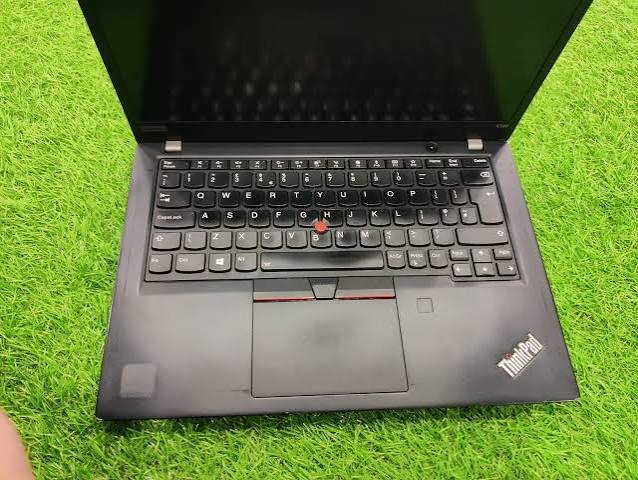
A laptop keyboard is the built-in input device that allows you to enter letters, numbers, symbols, commands, and shortcuts directly into a laptop. Unlike a desktop computer, where the keyboard is normally a separate accessory, a laptop keyboard is integrated into the computer’s body to save space and make the device portable. It is one of the most frequently used parts of a laptop because almost every activity involving writing, searching, programming, communication, or navigating software can involve keyboard input. Modern laptop keyboards can differ significantly in their layout, key spacing, key travel, feedback, lighting, and additional functions, so the keyboard can have a noticeable effect on how comfortable a laptop feels during everyday use. Lenovo notes that factors such as key spacing, key travel, dedicated function keys, and layout vary between laptop models and influence how users interact with applications and documents.
How a Laptop Keyboard Works
When you press a key, the keyboard detects the input and sends a corresponding signal to the laptop’s operating system. The system then interprets that signal as a character, command, or shortcut depending on the key and the software being used. Although the process happens almost instantly, the physical design underneath each key determines much of the typing experience. Different laptop keyboards use different mechanisms, and manufacturers balance thinness, durability, comfort, and manufacturing requirements when designing them. Some keyboards are also equipped with special functions, such as media controls, dedicated shortcut keys, numeric keypads, or backlighting. Think of the keyboard as the laptop’s conversation channel: your fingers provide the instructions, and the computer translates those instructions into actions on the screen.
Why the Laptop Keyboard Matters
A laptop can have a powerful processor, a high-resolution display, and plenty of storage, but an uncomfortable keyboard can make everyday use frustrating. Imagine trying to write an assignment on a keyboard where your fingers frequently hit neighboring keys or where the keys feel inconsistent. Even simple tasks can become slower when you have to correct repeated typing mistakes. For people who spend significant time writing documents, answering messages, programming, creating content, or working with spreadsheets, keyboard design becomes an important part of the overall laptop experience. Lenovo’s current guidance identifies key travel, actuation, tactile feedback, spacing, backlighting, and build quality as useful keyboard characteristics to consider.
Typing Comfort and Productivity
Typing comfort depends on several factors rather than one specification. Key spacing affects how easily your fingers move from one key to another, while key travel describes how far a key moves when pressed. Tactile feedback gives your fingers a physical indication that a key has been activated, which can make typing feel more predictable. The right combination is subjective, because one person may prefer a firm and noticeable key press while another may prefer a softer and quieter keyboard. For students, writers, office users, and programmers, testing a keyboard before buying a laptop can therefore be just as useful as checking processor specifications. A comfortable keyboard does not magically make someone a faster typist, but a suitable layout can make long typing sessions feel more natural.
Main Parts of a Laptop Keyboard
A typical laptop keyboard contains an alphanumeric section, function keys, modifier keys, navigation controls, and sometimes a numeric keypad. The alphanumeric area contains letters and numbers and forms the core of normal typing. Modifier keys such as Shift, Ctrl, Alt, and, depending on the operating system, Windows or Command keys are used with other keys to perform shortcuts. Function keys are commonly arranged along the top row and may perform both traditional F-key functions and laptop-specific tasks such as adjusting volume, screen brightness, or wireless connectivity. Arrow keys and navigation keys are particularly useful when editing documents or moving through webpages and spreadsheets.
Letter, Number, and Function Keys
The arrangement of keys can differ according to laptop size and regional keyboard standard. Some larger laptops have enough physical space for a dedicated numeric keypad, while thinner or smaller models may omit it. This difference can matter to people who frequently enter numbers, such as students working with spreadsheets or users handling accounting information. Function keys may also behave differently between laptop models, with some requiring the Fn key for traditional F1–F12 commands. Because manufacturers can assign different secondary functions, checking the keyboard diagram or manual for a particular laptop is useful when learning its shortcuts.
Common Laptop Keyboard Layouts
Laptop keyboard layouts are designed around the available chassis space. A larger 15- or 16-inch laptop may have room for a more spacious keyboard, while a compact 13- or 14-inch model usually prioritizes portability. Some laptops include a separate number pad, while others use the main number row and software-based numeric input. Compact designs may also combine certain navigation functions with other keys. Lenovo explains that full-size layouts typically include a numeric keypad, while smaller layouts reduce or combine functions to save space.
Full-Size and Compact Layouts
A full-size laptop keyboard generally provides more dedicated keys, which can be helpful for numeric entry and certain professional workflows. A compact keyboard reduces the physical footprint and can make a laptop easier to carry. Neither design is automatically suitable for every person because the best choice depends on what you type and how often you use specialized keys. If you regularly work with numbers, a numeric keypad can be convenient. If portability is your priority, a smaller keyboard can allow the laptop itself to remain compact.
Laptop Keyboard Types
Laptop keyboards can use different physical mechanisms beneath the keycaps. Many laptops use thin, low-profile designs because the entire keyboard must fit inside a relatively shallow chassis. Membrane keyboards use a layered structure to detect key presses, while scissor-style mechanisms are commonly associated with thin laptop keyboards and provide a stable, low-profile key movement. External mechanical keyboards use individual switches beneath keys and are more common in desktop setups, although specialized laptops can have different keyboard mechanisms. The mechanism influences key feel, travel, sound, and responsiveness, so it is useful to understand what you are getting rather than judging a keyboard only by appearance.
Membrane and Scissor-Style Keyboards
Membrane designs are common because they can be manufactured in thin form factors suitable for laptops. Scissor-style mechanisms can help stabilize individual keys while maintaining a relatively slim profile. What matters most for everyday users is how the keyboard actually feels: Are the keys easy to locate? Do they register consistently? Is the spacebar stable? Does the layout make sense for your normal tasks? Specifications provide useful information, but physical testing remains valuable because typing comfort is partly a matter of personal preference.
Backlit Laptop Keyboards
A backlit laptop keyboard contains lighting beneath or around the keys so that the characters remain easier to see in dim environments. Modern backlit systems can range from simple single-color illumination to more advanced customizable lighting. HP explains that backlighting can make keys easier to identify in low-light conditions, while Lenovo describes backlighting as a feature that can support key visibility in dim environments.
Benefits of Keyboard Backlighting
Backlighting can be especially useful if you work in a room with low lighting or travel frequently. Instead of struggling to identify individual keys, you can see the characters directly on the keyboard. Some models allow brightness adjustment, while gaming-oriented laptops may provide more extensive lighting controls. However, not every laptop has a backlit keyboard, and the exact method for turning the lighting on can vary. HP notes that common laptop controls may use a function key such as F5, F9, or F11, but the exact control depends on the model.
Spill-Resistant Laptop Keyboards
A spill-resistant keyboard is designed to provide some protection against accidental liquid exposure. It is important to understand that spill resistance does not mean a laptop is waterproof. The design may help reduce the risk from certain accidental spills, but liquid can still damage electronic components if it reaches sensitive areas. Some current Lenovo laptops, for example, list spill-resistant keyboards as part of their specifications.
For students and people who frequently work around drinks, spill resistance can be a useful design consideration. Still, the safest approach is to keep liquids away from electronics whenever possible. If a significant spill occurs, avoid assuming that a spill-resistant keyboard makes the computer safe and follow the manufacturer’s guidance for handling liquid exposure.
Laptop Keyboards for Students and Office Work
For students, a laptop keyboard should generally provide a familiar layout, comfortable typing, and dependable key registration. Students may use the keyboard for assignments, research, emails, presentations, online learning, and communication, so versatility matters more than specialized gaming features. An adequately spaced keyboard can make long writing tasks more comfortable, while a backlight can be useful for studying in dim environments. Office users have similar requirements, particularly when writing reports, responding to emails, entering data, and using keyboard shortcuts. A numeric keypad may be particularly useful for spreadsheet-heavy work, while a compact keyboard may be preferable for users who value portability.
Laptop Keyboards for Gaming
Gaming keyboards can place greater emphasis on responsiveness, key rollover behavior, lighting, and specialized controls. Some gaming laptops provide customizable lighting or programmable functions, while others focus on a straightforward keyboard design. Lenovo notes that gaming keyboard designs can vary in layout, switch type, lighting, and connectivity, while programmable features may support specific gaming workflows.
A gaming laptop keyboard does not necessarily need to look dramatic to be functional. What matters is whether the keys are comfortable, consistently responsive, and positioned appropriately for the games you play. If you also use the laptop for school or work, consider the keyboard as an all-purpose input device rather than judging it only by its gaming features.
Laptop Keyboard Features to Check Before Buying
Before buying a laptop, look beyond the number of processor cores and the amount of storage. The keyboard is something you may physically interact with thousands of times during ordinary use. Check whether the layout includes a numeric keypad, whether the keyboard is backlit, how the function row works, and whether the key spacing feels comfortable. Also consider whether the keyboard has spill resistance if that feature matters to your environment. HP similarly recommends considering characteristics such as keyboard size, key travel, and additional features when choosing a laptop keyboard.
Key Travel, Spacing, and Feedback
Key travel describes the distance a key moves when pressed, while tactile feedback describes the physical response you feel during the press. These characteristics can influence whether typing feels soft, firm, shallow, or responsive. Lenovo’s current keyboard guidance gives typical laptop-oriented ranges for key travel and actuation force, but those figures should be treated as specifications rather than a universal measure of comfort.
When comparing laptops, pay attention to the things that affect your actual hands: key stability, spacing, surface texture, layout, and the feel of commonly used keys such as Space, Enter, Shift, and Backspace. These details can matter more to everyday typing than a long list of technical features.
How to Keep a Laptop Keyboard Clean
A laptop keyboard collects dust, crumbs, and other small particles through normal use. Keeping it clean can help maintain a pleasant typing experience and reduce buildup around the keys. Before cleaning, shut down the laptop and follow the manufacturer’s cleaning recommendations. Use appropriate equipment and avoid forcing objects underneath keys because laptop key mechanisms can be delicate.
Regular gentle cleaning is usually easier than waiting until the keyboard becomes heavily dirty. You can also reduce contamination by keeping food and drinks away from the laptop. A clean workspace is not only more pleasant; it also makes the laptop easier to maintain over time.
Common Laptop Keyboard Problems
Common keyboard problems include keys not responding, repeated characters, incorrect characters, sticky keys, backlight problems, and accidental input. Some problems are caused by software or settings rather than physical damage. For example, an incorrect keyboard language or layout can cause different characters to appear than the ones printed on the keys. A driver or operating-system issue can also interfere with input.
Physical damage is another possibility, particularly if the laptop has experienced a fall or liquid exposure. If only one key is affected, the problem may be localized to that key mechanism. If the entire keyboard stops responding, software, connection, power, or motherboard-related causes may need to be considered.
Laptop Keyboard Not Working: Basic Checks
If a laptop keyboard stops working, start with simple checks rather than immediately assuming that the hardware has failed. Restart the laptop and check whether the problem affects all applications or only one program. Verify the keyboard language and input settings, and check whether special function modes have been activated. If an external keyboard works while the built-in keyboard does not, that can provide useful information for troubleshooting, although it does not by itself identify the exact cause.
If the laptop has experienced liquid exposure or physical damage, avoid aggressive attempts to repair the keyboard yourself. Manufacturer support documentation or a qualified technician can help determine whether the keyboard assembly needs repair or replacement. The correct troubleshooting process depends on the laptop model and operating system.
Built-In vs External Keyboard
A built-in laptop keyboard is convenient because it travels with the computer and requires no separate accessory. An external keyboard, however, can provide more choices in layout, size, switch type, and positioning. HP notes that an external keyboard can allow a more flexible physical position and may provide additional space compared with a laptop’s built-in keyboard.
| Feature | Built-in Laptop Keyboard | External Keyboard |
| Portability | Excellent | Depends on model |
| Desk space | Minimal | Requires additional space |
| Layout choices | Limited to laptop design | Many options |
| Positioning | Fixed to laptop | Flexible |
| Replacement | Often model-specific | Usually easier |
| Gaming options | Depends on laptop | Very wide range |
For normal mobile use, the built-in keyboard is usually the practical choice. For a permanent desk setup, an external keyboard can offer more flexibility.
How to Choose the Right Laptop Keyboard
Choosing the right keyboard starts with understanding your daily tasks. If you mainly write assignments and browse the internet, prioritize comfortable keys, sensible spacing, and a familiar layout. If you work with numbers, look for a laptop with a dedicated numeric keypad. If you frequently use the laptop in dark environments, backlighting can be useful. If portability is important, a compact keyboard design may fit better with a smaller laptop.
You should also consider build quality and durability. A keyboard that feels solid can provide a more consistent experience over time, while spill resistance may add another layer of practical protection. Lenovo identifies build quality, key layout, spacing, backlighting, and spill resistance among characteristics users can consider when evaluating laptop keyboards.
Laptop Keyboard and Ergonomics
Your keyboard is only one part of a comfortable computer workspace. The height and position of the laptop screen can affect your overall posture, while the position of your hands and wrists influences how comfortable typing feels. If you use a laptop at a desk for long periods, an external keyboard can allow you to position the input device independently from the display. This can make it easier to create a workspace that fits your body and desk.
Comfort should be practical rather than complicated. Keep your wrists in a relaxed position, avoid excessive force when pressing keys, and take regular breaks during extended computer sessions. If typing becomes uncomfortable or painful, changing your setup and discussing persistent problems with a qualified professional can be sensible.
Laptop Keyboard Shortcuts
Keyboard shortcuts can make everyday computer tasks faster because they allow you to perform commands without repeatedly reaching for menus. Common shortcuts involve modifier keys such as Ctrl, Alt, Shift, or the Windows key on Windows systems. The exact shortcuts vary between operating systems and applications, so it is useful to learn the shortcuts for the software you use most frequently.
For students, shortcuts can help with copying, pasting, searching, switching between applications, and navigating documents. For content creators and programmers, shortcuts can become an important part of daily workflows. Learning a few useful shortcuts at a time is usually easier than trying to memorize dozens at once.
Laptop Keyboard Buying Comparison
When comparing laptops, keyboard features can be summarized alongside other important specifications. The following table is a practical framework rather than a ranking because different users have different needs.
| Keyboard Feature | Useful For | What to Check |
| Backlighting | Low-light typing | Brightness and controls |
| Numeric keypad | Numbers and spreadsheets | Dedicated number keys |
| Good key spacing | General typing | Distance between keys |
| Comfortable key travel | Long typing sessions | Physical key movement |
| Tactile feedback | Precise typing | Feel and consistency |
| Spill resistance | Busy workspaces | Manufacturer specification |
| Compact layout | Portability | Missing or combined keys |
| Dedicated function keys | Shortcuts and controls | Fn behavior |
| Strong build | Frequent use | Keyboard stability |
| Programmable features | Specialized workflows | Software and compatibility |
There is no universal keyboard specification that guarantees a perfect typing experience. The best keyboard depends on the combination of laptop size, your workload, preferred typing feel, and the features you actually use.
Conclusion
A laptop keyboard is much more than a collection of buttons beneath the screen. It is one of the primary ways you communicate with your computer, whether you are writing an assignment, sending messages, editing content, programming, browsing websites, or playing games. Important characteristics include key spacing, key travel, tactile feedback, layout, backlighting, build quality, and additional features such as numeric keypads or spill resistance. Current manufacturer guidance confirms that these characteristics can vary considerably between laptop models, which is why looking beyond basic specifications is useful when choosing a device.
The best approach is simple: think about how you actually use your laptop. A student may value comfortable typing and portability, an office user may prefer a numeric keypad, and someone who regularly works in low-light conditions may appreciate backlighting. Once you understand these differences, comparing laptop keyboards becomes much easier. The keyboard may not be the most visible specification on a laptop product page, but it can have a surprisingly large effect on your everyday computing experience.
FAQs
1. What is a laptop keyboard?
A laptop keyboard is the built-in input device used to enter text, numbers, symbols, commands, and shortcuts into a laptop. It is integrated into the laptop chassis to save space and support portability.
2. Is a backlit laptop keyboard useful?
Yes, a backlit keyboard can make key labels easier to see in dim environments. The exact lighting controls vary by laptop model, and some laptops do not include backlighting.
3. What makes a laptop keyboard comfortable?
Important factors include key spacing, key travel, tactile feedback, layout, and key stability. Comfort is subjective, so trying the keyboard before buying can be helpful.
4. What is a spill-resistant laptop keyboard?
A spill-resistant keyboard is designed to provide some protection against certain accidental liquid exposure. It does not mean that the entire laptop is waterproof, so liquids should still be kept away from the computer.
5. Can I use an external keyboard with a laptop?
Yes. An external keyboard can provide a different layout, additional features, or more flexible positioning. It can be especially useful when a laptop is used as part of a stationary desk setup.